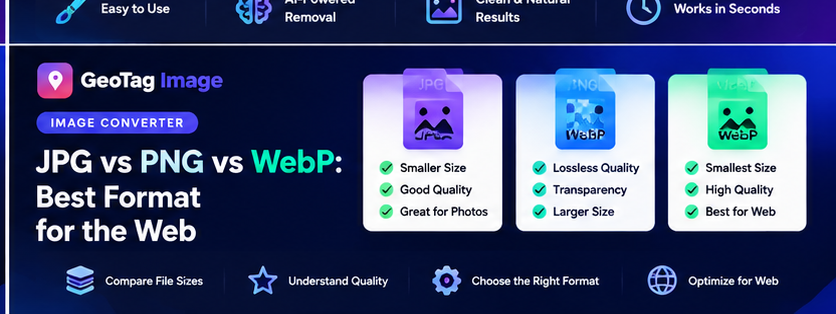
JPG, PNG and WebP each solve a different image problem. Choosing the right format helps balance visual quality, file size, transparency and compatibility.
JPG
Best known for photographic images. JPEG supports adjustable lossy compression and broad compatibility. It does not support transparency.
PNG
PNG is lossless and supports transparency. It is excellent for logos, diagrams and interface graphics, but photographic PNG files can become very large.
WebP
WebP is designed for web delivery and supports both lossy and lossless modes plus transparency. For many websites it is a strong default for modern image optimization.
Which Format Should a Local Business Use?
Use the format that fits the actual image. A storefront photograph may work well as WebP or JPEG. A transparent logo is better as PNG or WebP. A screenshot with sharp interface text may need a higher-quality setting than a typical photo.
Performance Workflow
First resize images to realistic display dimensions. Then convert with the Image Converter. Finally, if you still need a smaller file, use the Image Compressor and compare the result visually.
Image SEO Basics Still Apply
The file format is only one part of image optimization. Use descriptive filenames, meaningful alt text, relevant page context and appropriately sized images. For a broader checklist, see our Image SEO Checklist for Local Businesses.
JPG: Strong Compatibility for Photography
JPG is still a dependable choice for photographs. It uses lossy compression, which means file size can be reduced by lowering quality. It does not support transparency, but it is accepted by almost every website, application and content-management system. If you need one photographic format that is unlikely to create compatibility surprises, JPG remains useful.
PNG: Best When Transparency or Lossless Detail Matters
PNG is designed differently. It is lossless and supports transparent pixels, making it suitable for logos, screenshots, diagrams and interface assets. The trade-off is that complex photographic PNG files can become much larger than comparable JPG or WebP versions. Use PNG when its specific strengths are needed rather than simply because it sounds higher quality.
WebP: Efficient for Many Modern Websites
WebP can support both transparency and efficient photographic compression. For modern web publishing it often provides a strong balance between file size and visual quality. That does not mean every WebP file is automatically smaller; dimensions and encoder settings still matter. A poorly configured WebP can be unnecessarily large, while a well-sized JPEG can be very efficient.
Match the Format to the Content
For a product photograph or blog hero image, compare JPG and WebP. For a logo that requires a transparent background, compare PNG and WebP. For a screenshot containing text, inspect sharp edges carefully because aggressive lossy compression can make small text look dirty. The correct format is the one that preserves the visual properties the image actually needs.
Consider Browser Delivery and Editing Workflow
A format that is excellent for final delivery may not be ideal as your only editing master. Keep an original source file when future editing is likely, then create optimized publishing copies. The Image Converter can generate JPG, PNG or WebP copies while keeping the original untouched on your device. If the output is too large, use the Image Compressor to adjust size and quality.
Metadata Can Change During Conversion
Do not assume EXIF, capture information or GPS coordinates will survive a format change. Conversion frequently creates a new raster file without the original metadata block. If those fields matter, verify the final file using the EXIF Checker. For an authorized location workflow, add necessary GPS information to the final optimized copy and verify it after export.
A Simple Format Decision Checklist
- Is the image mainly a photograph? Start with JPG or WebP.
- Does it require transparency? Use PNG or WebP.
- Does it contain crisp UI text or line art? Test PNG and WebP carefully.
- Does the destination require a specific extension? Follow that requirement.
- Resize to the actual display dimensions before comparing file sizes.
- Inspect the final image visually instead of choosing only by file size.
The best web format is therefore contextual. Use the smallest practical file that preserves the properties the image needs, stays compatible with the destination and fits your broader publishing workflow.