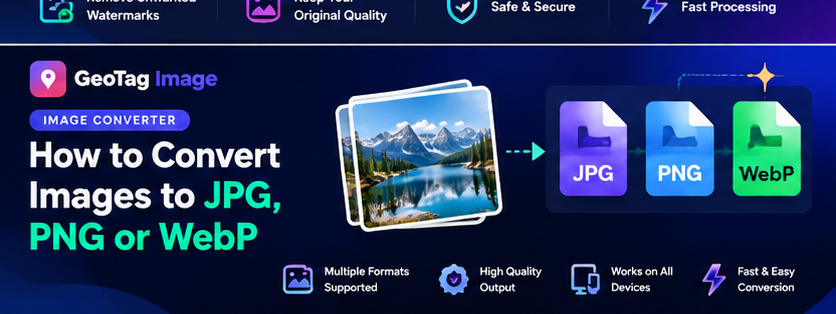
Image conversion is useful when a website, app or client requires a different format. GeoTagImage’s Image Converter converts JPG, PNG and WebP directly in your browser and can also resize oversized images during the same workflow.
JPG for Photographs and Broad Compatibility
JPEG is a practical choice for photographs when transparency is not required. It uses lossy compression and lets you trade some visual detail for a smaller file.
PNG for Lossless Graphics and Transparency
PNG is useful for logos, interface graphics and images that require transparent pixels. It can be much larger than JPEG or WebP for photographic scenes.
WebP for Modern Web Delivery
WebP supports both photographic compression and transparency. It is often a strong output choice for websites because it can reduce transfer size while maintaining useful visual quality.
How to Convert
- Upload one or more JPG, PNG or WebP files.
- Select the desired output format.
- Choose quality for JPEG or WebP.
- Optionally set a maximum width to resize large images.
- Convert and download each result.
Transparency Warning
JPEG cannot store transparent pixels. When a transparent PNG or WebP is converted to JPEG, transparent areas need a background. Our converter places them on white before JPEG export.
Metadata Can Change During Conversion
Canvas-based conversion focuses on the visible image. Embedded EXIF and GPS metadata may not be preserved. If metadata is important, check the final file with the EXIF Checker and, when appropriate, use the Geo Tag Image tool on the final publishing copy.
Preview Images Before You Convert
The updated Image Converter shows every selected image before processing. A preview is especially useful in bulk workflows because filenames alone are not always enough to identify the correct asset. The preview card displays the source image, file size, format and dimensions so you can confirm the batch before using your daily allowance.
Choose JPG for Photographs Without Transparency
JPEG is a practical photographic format when transparency is not required. It supports adjustable quality and remains compatible with a wide range of systems. When a PNG or WebP source contains transparency and you convert it to JPEG, transparent pixels must be flattened. The converter therefore includes a background-color control so you can choose the color used behind those areas rather than accepting an unexpected result.
Choose PNG for Lossless Graphics and Transparency
PNG is useful for screenshots, logos, interface graphics and images that need transparent areas. It is lossless, so a normal quality percentage does not behave the same way as it does for JPEG or WebP. PNG files can be larger for complex photographs, which is why format choice should be based on the image content and destination rather than on a single “best format” rule.
Choose WebP for Modern Web Delivery
WebP supports both photographic compression and transparency and is a strong option for many modern websites. It can reduce transfer size while maintaining useful visual quality. If your publishing system supports WebP, create a test output and compare it with the JPEG version. For a final website asset, the smaller file is valuable only if the visual result still looks clean at the displayed size.
Resize During Conversion
If the original image is larger than the destination requires, use the maximum-width setting while converting. The tool maintains the aspect ratio and calculates a matching height automatically. Combining conversion and resize in one step avoids generating an unnecessarily large intermediate file. For example, a camera image several thousand pixels wide can be converted directly into a more appropriate web-sized asset.
Bulk Limits by Plan
Free users can convert up to five images per day and can place all five in one batch. Pro supports 20 conversions per day with up to 10 images in one batch. Premium supports 60 conversions per day with up to 30 in one batch. Annual Unlimited removes the daily conversion cap and supports larger batches. The converter checks both limits before processing so you can see how much capacity remains.
Check Metadata After Conversion
Image conversion creates a new file, and metadata may not be preserved. If GPS or camera information matters, inspect the downloaded file with the EXIF Checker. If the final publishing copy needs verified GPS coordinates, use the Geo Tag Image tool after conversion. If the converted output is still larger than needed, the Image Compressor can target a smaller file size.