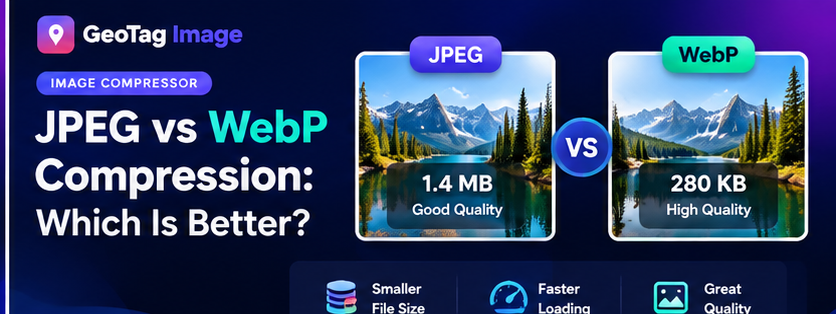
JPEG and WebP are both practical choices for web photographs, but they are not identical. The better format depends on compatibility requirements, file size, visual quality, transparency needs and the image-processing workflow used by your site.
JPEG: Familiar and Compatible
JPEG has decades of compatibility and remains a safe choice for photographs. It uses lossy compression, which means reducing quality can significantly reduce file size. JPEG is also the format where EXIF metadata interoperability is most familiar across cameras, editors and metadata tools.
WebP: Built for Modern Web Delivery
WebP can often produce smaller photographic files than JPEG at a visually similar quality level. It also supports transparency, which makes it more flexible than JPEG for some designs. Modern browsers support WebP widely, although specific publishing systems or downstream tools may handle metadata differently.
Which Compresses Better?
There is no single percentage that applies to every image. A detailed landscape, a product photo, a screenshot and a flat graphic compress differently. The useful test is to encode the same image at comparable display dimensions and visually inspect both versions.
Use our Image Compressor to create optimized outputs, then compare them at the actual size where they will appear on your page.
SEO Is Not Just File Format
Search performance depends on a much broader set of factors than whether a file is JPEG or WebP. Relevant surrounding content, descriptive alt text, meaningful filenames, crawlable image URLs, sensible dimensions and fast page delivery all matter to a complete image workflow.
Metadata Considerations
If EXIF or GPS metadata matters for your internal workflow, verify the final file after compression. Re-encoding can change metadata behavior. The EXIF Checker is designed for this verification step. You can also review our guide to JPEG vs WebP EXIF metadata.
Simple Decision Guide
- Choose JPEG when you need maximum familiarity and straightforward photo compatibility.
- Choose WebP when smaller web delivery files are a priority and your publishing workflow supports it.
- Choose PNG when you need lossless raster graphics or transparency and file size is acceptable.
When JPEG Is Still the Practical Choice
JPEG remains useful when you need broad compatibility with older software, established publishing systems or workflows that explicitly request a .jpg file. It is predictable for photographs and gives direct quality control. If the destination is unknown or the image may be passed through several third-party systems, JPEG can be the conservative choice even when WebP could produce a smaller file.
When WebP Has an Advantage
WebP is attractive for modern web delivery because photographic images can often be encoded to a smaller file at comparable visual quality. That can reduce transfer size across a content-heavy website. The actual saving depends on the source image, dimensions and quality level, so compare real outputs instead of assuming one fixed percentage. The Image Compressor lets you create WebP and JPEG versions from the same source so you can inspect both.
Do Not Ignore Image Dimensions
Format comparisons are only meaningful when dimensions are equivalent. A 3000-pixel WebP will not necessarily beat a properly sized 1200-pixel JPEG for a page that only displays 1200 pixels. Before comparing codecs, decide the largest dimensions the page actually needs. Then encode both formats at that size and compare file weight and visual detail.
What Happens to Metadata?
Conversion and re-encoding can remove EXIF fields, including camera information and GPS coordinates. If metadata is part of your workflow, do not rely on the original file after compression. Inspect the final download with the EXIF Checker. If you intentionally need GPS information on the final optimized file, add verified coordinates after conversion or compression and check the result again.
How to Make a Fair Visual Comparison
Use the same source image, the same pixel dimensions and similar perceived quality. Inspect fine text, foliage, hair, gradients and sharp boundaries because compression artifacts often appear there first. View the image at its intended display size as well as at 100% zoom. A difference that is visible only under extreme magnification may not matter for normal web delivery, while text or product details that look soft at normal size are a reason to raise quality.
Recommended Decision Process
- Resize the source to the dimensions the page needs.
- Create a JPEG around a sensible quality level.
- Create a WebP version at a similar visual quality.
- Compare file size and important visual details.
- Choose the format that gives the best practical balance for the destination.
- Verify metadata when those fields matter.
There is no universal winner for every image. WebP is often efficient for websites, while JPEG remains highly compatible. The best choice is the one that satisfies the destination, quality requirement and workflow without carrying unnecessary bytes.