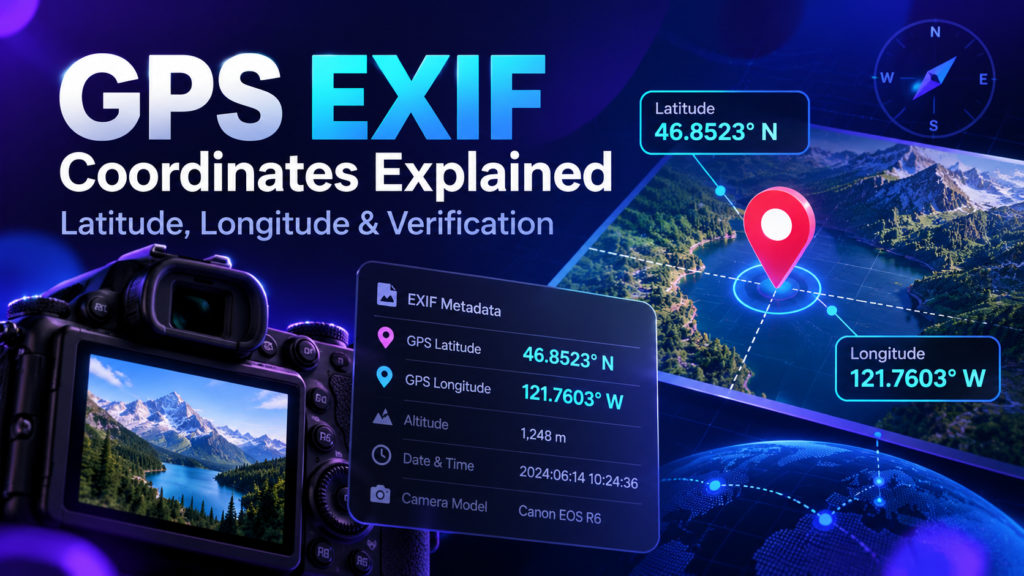
GPS EXIF coordinates store a photo location as latitude and longitude values inside image metadata. Latitude describes north-south position, longitude describes east-west position, and additional reference fields indicate whether the coordinates are north/south and east/west. Understanding these fields helps you verify whether a photo is tagged to the intended place.
Latitude and Longitude Basics
Latitude ranges from 90 degrees south to 90 degrees north. Longitude ranges from 180 degrees west to 180 degrees east. A coordinate pair identifies a point on the Earth, for example a business entrance, job site or landmark. In many EXIF files the values are stored as degrees, minutes and seconds rather than a single decimal number.
Degrees, Minutes and Seconds vs Decimal Degrees
A decimal coordinate such as 23.5880 can be represented in degrees, minutes and seconds. EXIF commonly stores the numeric parts as rational values plus separate reference fields such as N, S, E or W. Software converts those fields into the decimal format you see in mapping tools.
Common GPS EXIF Fields
- GPSLatitude: the latitude components.
- GPSLatitudeRef: north or south.
- GPSLongitude: the longitude components.
- GPSLongitudeRef: east or west.
- GPSAltitude: optional elevation data.
- GPSDateStamp / GPSTimeStamp: optional GPS time information.
How to Verify Coordinates in an Image
Open the image in the EXIF Checker and note the latitude and longitude. Then compare the point with the intended location on a map. If you are preparing a business photo, confirm that you selected the actual relevant location rather than a random point in the same city.
How Location Data Is Written
A geotagging tool takes a location selected on a map or entered as coordinates, converts that location into the required EXIF structure, and writes it into a new image file. A good workflow then reads the exported file again to verify that the metadata survived the save process.
- Select the intended location.
- Confirm the map pin and coordinates.
- Upload the image.
- Add only metadata that is accurate and useful.
- Export the new copy.
- Verify the GPS fields before publishing.
How Accurate Should Coordinates Be?
Accuracy should match the purpose of the image. For a public business photo, tagging the legitimate business location may be appropriate. For a broad service-area photo, precise residential or customer coordinates may create a privacy problem and may not be appropriate to publish. Never add a precise location merely to create a false impression about where a business operates.
Location Metadata and Privacy
GPS EXIF can reveal where a photo was captured or where someone chose to tag it. Before sharing family photos, customer-site photos, property interiors or images involving vulnerable people, consider whether the coordinate data should be removed. Keep a private master copy if the location is useful internally and publish a cleaned copy when public disclosure is unnecessary.
GPS EXIF and SEO
GPS metadata can be useful for organizing and validating your own image workflow, but it should not be represented as a guaranteed Google ranking factor. For local visibility, accurate Business Profile information, relevant service/location content, reviews, prominence and useful photos deserve higher priority.
Inspect the Coordinates in Your Photo
Read GPS EXIF fields first, then use the geotagging tool when you need to add or correct location metadata.