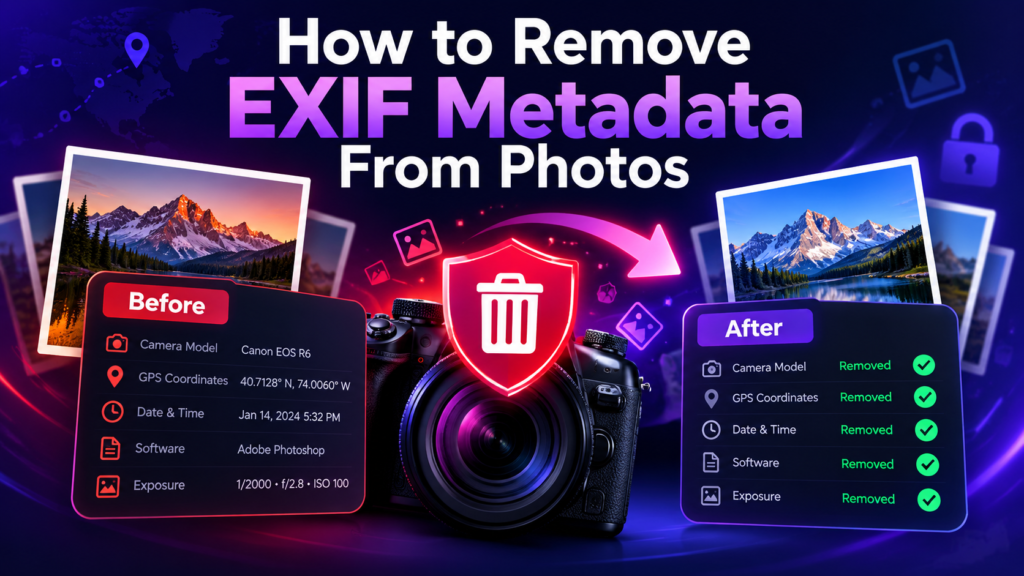
You can remove EXIF metadata from a photo by exporting a clean copy that excludes embedded fields such as camera model, capture time and GPS coordinates. The safest workflow is to inspect the file first, decide which information you actually need to remove, create a cleaned copy, and verify that the metadata is gone before publishing or sharing it.
What Removing EXIF Metadata Actually Does
EXIF is a metadata container used by many image formats, especially JPEG. Depending on the camera or software, it can include capture date, camera make and model, lens details, orientation, exposure settings, copyright fields and GPS coordinates. Removing EXIF does not normally change the visible pixels in the image; it changes the hidden descriptive data stored alongside those pixels.
This matters most when a photo may reveal a private location, a repeatable work address, an internal filename, or device information that you do not want to publish.
Step 1: Check What the Image Contains
Before deleting everything, open the file in an EXIF checker. Look specifically for GPS latitude and longitude, date/time fields, device make and model, software history, author/copyright fields and any description or keyword fields added by an editor.
Step 2: Remove or Re-export Metadata
Method A: Export a clean copy
Many image editors and operating systems offer an export or “remove properties” option. This is usually the most reliable approach because the new file is created without selected metadata fields.
Method B: Use a browser-based metadata cleaner
If you use an online or browser-based tool, check whether processing happens locally in your browser or whether the file is uploaded to a server. For sensitive client images, local processing reduces unnecessary transfer of the original file.
Method C: Re-save through an image workflow
Some export pipelines strip most metadata automatically. Do not assume this happened, however; always verify the exported copy before publishing it.
Step 3: Verify the Cleaned File
Open the new file again in the GeoTagImage EXIF Checker or another trusted metadata viewer. Confirm that the fields you intended to remove are absent. If GPS data still appears, do not publish the file until you have created and checked another clean copy.
When You May Want to Keep Metadata
Metadata is not automatically bad. Photographers may want to preserve copyright information; agencies may use titles and descriptions to organize assets; and location metadata can be useful for internal photo libraries when it is appropriate to record where work was completed. The decision should be based on purpose and privacy, not on a blanket rule that all metadata must always be deleted.
Websites, Social Platforms and Messaging Apps
Different platforms handle metadata differently. Some preserve fields, some remove most EXIF during recompression, and behavior can change over time. If location disclosure matters, treat the file you are about to publish as the source of truth and inspect it directly rather than relying on what a platform “usually” does.
What About Local SEO?
Removing GPS metadata from a public image does not mean you must abandon good image SEO. Descriptive filenames, relevant page copy, useful alt text, fast image delivery and accurate business information remain more dependable website practices. Google does not publicly document GPS EXIF as a direct local ranking factor, so privacy should not be sacrificed for an unconfirmed ranking theory.
EXIF Removal Checklist
- Keep the untouched original in a safe archive.
- Inspect the file before editing.
- Remove GPS coordinates when location privacy matters.
- Preserve copyright fields only when you intentionally want them public.
- Export a new copy instead of overwriting the original.
- Verify the exported file with an EXIF checker.
- Upload the verified copy, not the unreviewed original.
Check a Photo Before You Publish It
Use the EXIF Checker to see whether an image contains GPS, camera or descriptive metadata.