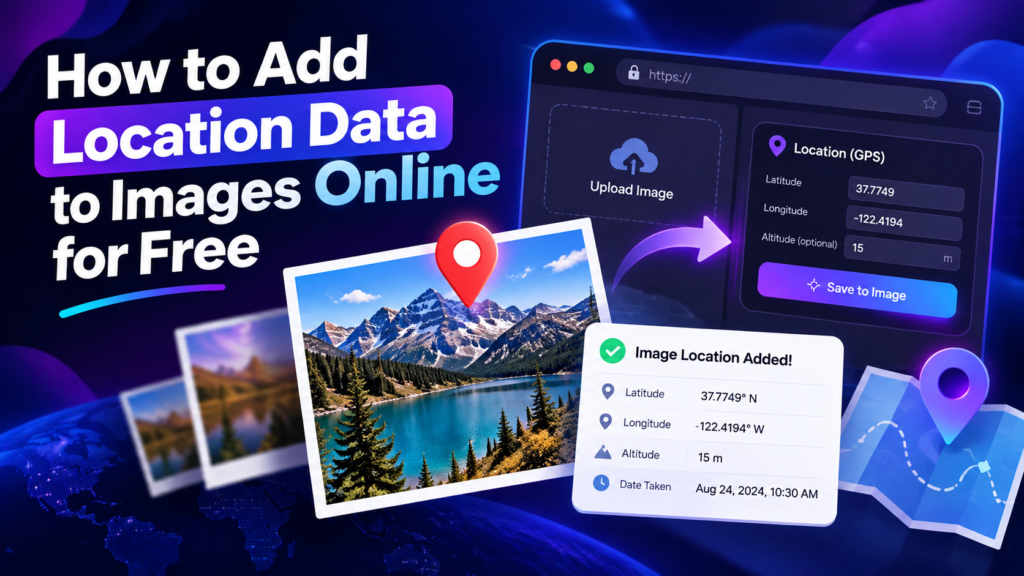
You can add a geotag to an existing photo without retaking the image. A browser-based geo tag photo editor can write location information to a new copy of the image, letting you keep the original untouched. This is useful when a camera did not save location, when you are organizing an image library, or when you need a consistent metadata workflow for authorized business photos.
What Does Adding a Geotag Mean?
A geotag normally refers to geographic metadata such as latitude and longitude. Depending on the file format and software, an image may also contain altitude, capture date, camera information, title, description, or other metadata fields. Adding a geotag does not change the visible pixels of the photo; it changes information stored with the file.
Metadata should be accurate. Do not use a photo editor to create false proof of location, misrepresent a business address, or claim that an image was captured somewhere it was not. Use location information only when you are authorized to process the image and the coordinates are appropriate for the intended use.
How to Add a Geotag to an Existing Photo Online
- Open the Geo Tag Image tool.
- Search for the correct place, click the map, or enter the latitude and longitude manually.
- Upload the existing JPG, PNG, or WebP photo within your plan limit.
- Add an optional title, descriptive filename, keywords, description, or altitude if those fields are useful for your workflow.
- Process the image and download the new copy.
- Open the downloaded file in the EXIF Checker and verify the final coordinates.
Why Verification Matters
It is easy to assume that metadata is still present because the image looks identical, but visible appearance does not tell you what happened to EXIF fields. Image editors, conversion tools, social networks, website platforms, messaging apps, and optimization services can create new copies that contain less metadata than the original. Always inspect the final file that you actually intend to publish or archive.
Can I Use a Free Geotag Photo Editor Online?
Yes. GeoTagImage provides a free browser-based workflow with a daily Geo Tag Image allowance. You can use the tool without installing an app, then verify the exported file with the EXIF Checker. Paid plans are intended for people who need higher daily or bulk-processing limits.
An online editor is especially useful when you move between devices. The same site can be opened from a laptop, Android phone, iPhone, or tablet. File-selection and download behavior can differ slightly between browsers, but the basic workflow remains the same.
Geo Tag Photo Editor vs Geo Tag Photo App
A mobile geo tag photo app is installed on one device and may integrate closely with the phone gallery. An online geo tag photo editor works through the browser and does not require an installation. The online approach is convenient for occasional editing and cross-device access. A dedicated app or desktop metadata program may be better when you need advanced cataloging, automated folder workflows, or very large batches.
What About a “Fake Geo Tag Photo”?
Technically, metadata editors can write coordinates selected by the user. That capability should not be confused with permission to create deceptive location evidence. A changed EXIF location does not prove where a photo was actually taken, and using false coordinates can violate platform rules, contracts, privacy expectations, or laws. GeoTagImage should be used for legitimate metadata management, correction, organization, and authorized publishing workflows.
Prepare the Image for the Web
After adding location data, decide whether the image also needs size or format optimization. Large camera photos can slow web pages, so the Image Compressor can reduce file size or target a specific KB/MB range. The Image Converter can create JPG, PNG, or WebP output and lets you preview images before bulk conversion.
Remember that re-encoding can change metadata. If preserving GPS data is essential, perform your operations in the order that best suits the final file and then inspect the finished download again. A disciplined workflow is more reliable than assuming that every program preserves the same fields.
Recommended Workflow
Keep your original image, create a working copy, add the correct location, verify the metadata, optimize size or format only if needed, and verify the final publishing copy. This approach protects the source file while giving you a clear record of what metadata is present at each stage.