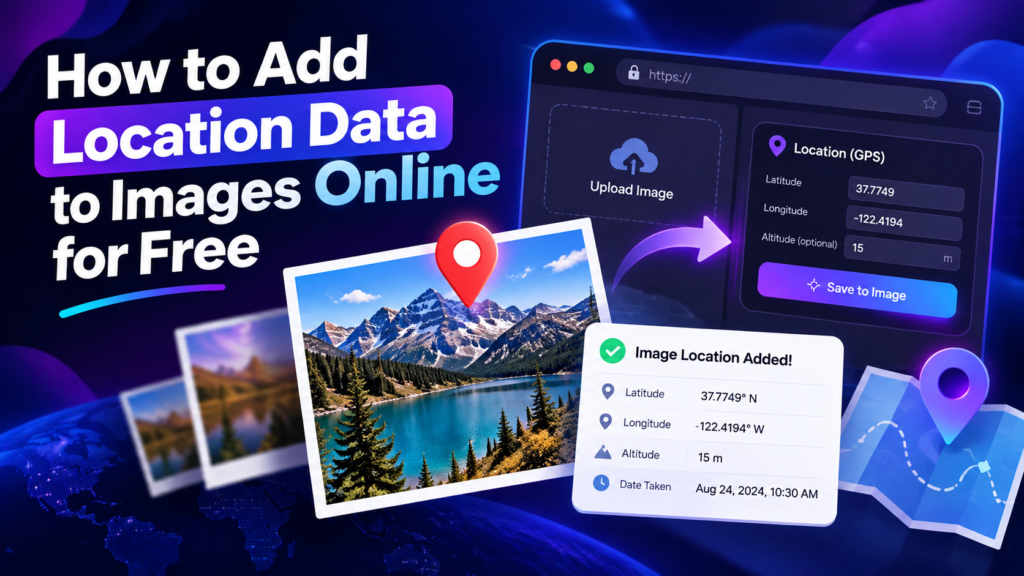
To add location data to an image online: choose the photo, search or pin the correct location, write the GPS values into supported metadata, export the file, and verify the result with an EXIF checker. Keep the original photo as a backup.
What You Need
A modern browser, the image you want to edit, and the correct latitude/longitude or a location you can find on a map. JPEG offers the most predictable EXIF compatibility, while PNG and WebP metadata support can vary by application.
Free Browser-Based Steps
Select your image
Use a copy of the original if the file is important. Avoid editing your only master file.
Find the location
Search an address or place the map pin manually. Double-check the location rather than choosing a nearby result with a similar name.
Add optional text metadata
Use a short title and description that accurately describe the photo. Keyword stuffing makes metadata less useful.
Export the image
Download the processed file to your device and preserve the original separately.
Verify the result
Open the export in the EXIF Checker and confirm that GPS coordinates and intended metadata are present.
When You Should Not Add Location Data
Avoid publishing precise GPS coordinates for a private home, protected location, child-related setting, confidential client site or any place where disclosure creates a privacy or safety concern. Location metadata should be intentional.
Why Metadata Sometimes Disappears
Some image editors, social networks and messaging services re-encode images and may remove metadata. If metadata matters to your workflow, verify the exact file you plan to use after every export or transfer step.
Quality Checklist
- The coordinates match the intended place.
- The image still looks sharp after export.
- The filename is descriptive.
- Text metadata is concise and truthful.
- No sensitive information is exposed unintentionally.
- The final file has been verified independently.
Add Location Data Now
Use the browser tool, then verify the exported metadata.
Latitude and Longitude Basics
Latitude measures position north or south of the equator, while longitude measures position east or west of the prime meridian. Decimal coordinates are commonly displayed like 23.5880, 58.3829. A small coordinate error can place the pin on another street, so visually confirm the map rather than copying coordinates from an unverified source.
JPG, PNG and WebP: What Changes?
JPEG remains the safest choice when your workflow depends on traditional EXIF interoperability across cameras, desktop software and metadata viewers. PNG and WebP can store metadata, but not every editor or publishing platform handles those fields in the same way. If you convert formats after adding GPS data, run the final file through the EXIF checker again.
Business Use Cases
A contractor can preserve the location of completed project photos, a property team can organize images by listing, and a multi-location brand can keep branch assets separated before publishing. In each case, location metadata is primarily operational context. Public publishing still requires a judgment about whether the precise location should be disclosed.
Publishing on a Website
When the image is going on a website, optimize more than metadata. Use a meaningful filename, descriptive alt text, the correct image dimensions, compression that preserves quality, and surrounding text that explains what the image shows. If the image is decorative, use empty alt text rather than forcing keywords into accessibility fields.
A Two-Minute Verification Routine
Open the exported image in the EXIF Checker, confirm the expected GPS fields, verify the map position, inspect the title and description, and then compare file size and visual quality with the original. This quick check catches coordinate mistakes, accidental metadata loss and over-compression before the asset reaches a client, website or Business Profile.