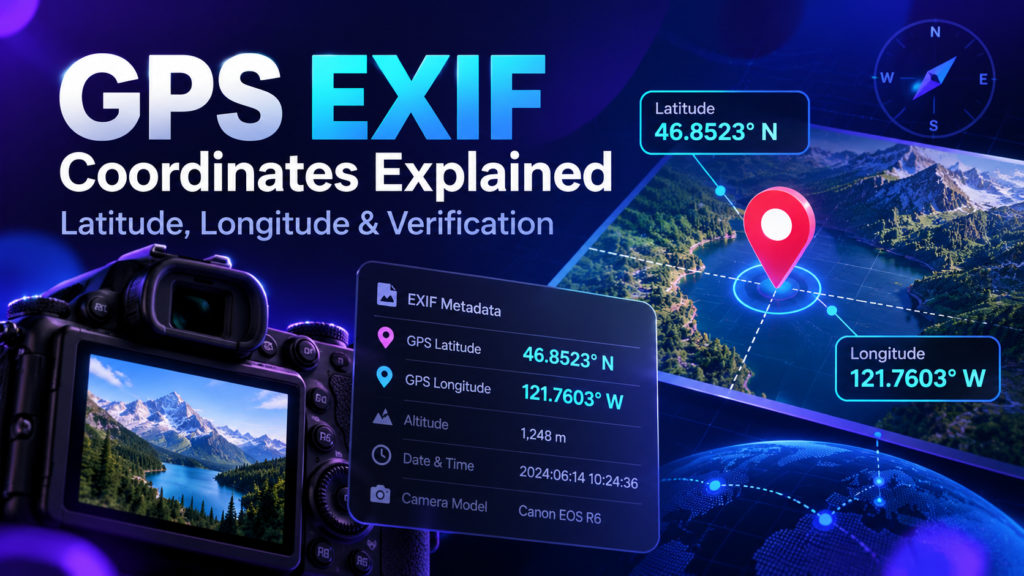
A geo tag photo is an image that contains location information, usually latitude and longitude, in its metadata. Modern Android phones and iPhones can often save location automatically when the Camera app has permission to use the device location. You can also add location data later to an existing photo with a browser-based geo tag photo editor. This guide explains both workflows and shows what to verify before you publish the image.
How to Take a Geo Tag Photo on Android
Android camera apps vary by phone manufacturer, but the basic process is similar. First, make sure Location is enabled on the phone. Then open the Camera app settings and look for a setting such as Location tags, Save location, GPS tag, Geotagging, or Location info. Turn that setting on and allow the Camera app to access location while you use it.
Take a new photo outdoors or in a location where the phone can determine its position accurately. After taking the photo, open it in your Gallery or Photos app and review the information panel. Some Android gallery apps show a map, address, or coordinates when location data was saved. If the photo has no location information, check the Camera permission and location-tagging setting before taking another picture.
How to Take a Geo Tag Photo on iPhone
On iPhone, go to Settings, open Privacy & Security, choose Location Services, and confirm that Location Services are enabled. Find Camera in the list and choose an appropriate permission such as While Using the App. Photos taken after that can include location information when the device is able to determine the location.
You can review the result in the Photos app. Open the photo and swipe up or open the information panel. If a location was stored, Photos can show a map or place name. Remember that editing, exporting, messaging, or uploading the image through another app may change or remove metadata, so the original file and the final publishing copy may not contain exactly the same information.
How to Add a Geotag to an Existing Photo
If the photo already exists, you do not need to retake it. Open the Geo Tag Image tool, choose the intended location on the map or enter the correct latitude and longitude, upload the image, and process the file. Add only truthful location information that you are authorized to use. The tool can also help you create a cleaner filename and optional descriptive metadata.
Download the processed copy and keep the original photo unchanged. Then open the downloaded copy in the EXIF Checker. Confirm that the latitude and longitude match the intended location. This verification step matters because metadata compatibility differs by format and can change when another application re-encodes the image.
Should You Use an App or an Online Geo Tag Photo Editor?
A dedicated mobile app can be convenient when you work with location metadata every day, but an online editor has an important advantage: there is nothing to install. You can open the same workflow on Android, iPhone, Windows, macOS, or another modern device. GeoTagImage is browser-based, so the image-processing step is designed to happen on your device rather than requiring a separate desktop application.
For occasional use, an online tool is often simpler. For a large professional archive, you may prefer a dedicated desktop metadata manager with advanced batch controls. The right choice depends on volume, file-format requirements, and how much metadata you need to manage.
Common Reasons Location Data Is Missing
- The Camera app did not have location permission when the image was captured.
- The camera’s location-tagging option was turned off.
- The image was edited or exported through software that removed metadata.
- A messaging or social platform created a new copy without the original GPS fields.
- The file format or export workflow did not preserve the same metadata fields.
Use Accurate Location Information
Geo tagging should not be used to fabricate evidence, misrepresent a business location, or create a false impression about where a photo was taken. Use coordinates that accurately describe the image or an authorized workflow. This is especially important for customer photos, regulated documentation, property images, and business listings.
Final Check Before Publishing
The most reliable workflow is: capture or select the photo, add or confirm the location, export the final file, and verify that final file. If the image is too large for your website, use the Image Compressor. If you need JPG, PNG, or WebP output, use the Image Converter. After any additional processing, check the final file again if preserving GPS metadata matters to your workflow.