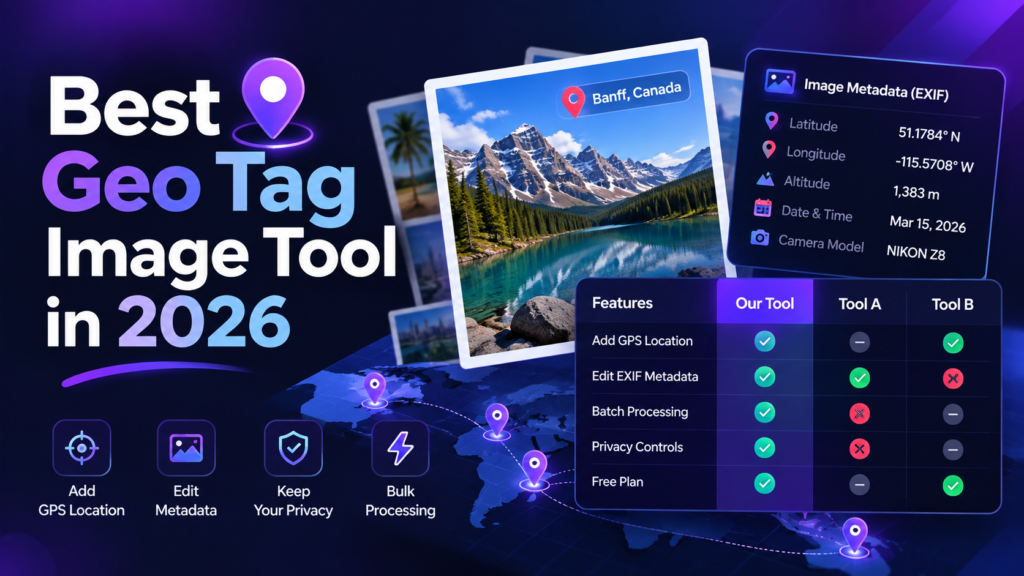
Looking for a GeoImgr alternative or simply trying to choose a reliable way to geo tag photos online? The best tool is the one that writes real GPS metadata correctly, lets you verify the output, fits your privacy requirements, and matches your image volume. This guide focuses on those practical checks instead of relying on outdated pricing or unsupported claims about competitors.
What to Check Before Choosing a Geo Tag Image Tool
A useful geotagging tool should do more than place a pin on a map. Before choosing GeoTagImage, GeoImgr or another service, check the full workflow from upload to verification.
Real GPS EXIF output: Download a test image and inspect it with an EXIF viewer. Latitude and longitude should be present in the exported file, not only displayed inside the tool interface.
Processing model: Decide whether you are comfortable with server-side processing or prefer browser-side processing. This matters when photos contain customer, property or project information.
Metadata controls: Useful fields may include image title, description, keywords and filename. Use descriptive information rather than keyword stuffing.
Verification: A good workflow includes a way to confirm that GPS and other metadata survived export.
Volume and batch limits: Check both the daily processing allowance and the number of files you can handle in one batch.
GeoTagImage: What the Current Tool Includes
GeoTagImage is designed around a simple browser workflow: upload a supported image, select the intended location, add metadata when useful, export the file and verify the result. For users who also need image preparation, the same site includes an Image Compressor, Image Converter and EXIF Checker.
Useful capabilities
- Add GPS latitude and longitude to supported images
- Edit descriptive metadata fields
- Rename the exported image
- Verify GPS and EXIF data with the EXIF Checker
- Use related compression and conversion tools on the same site
Things to consider
- Free processing has daily limits
- Higher-volume workflows require a paid plan
- Metadata support varies by image format and by the software used after export
Current GeoTagImage Plans and Limits
The table below is generated from the same plan configuration used by the tools and billing page, so the article does not need to hard-code old limits or prices.
| Plan | Price | Geo Tag | Compressor | Converter |
|---|---|---|---|---|
| Free | Free | 15/day | 5/day | 5/day |
| Pro | $5/month | 40/day | 20/day | 20/day |
| Premium | $10/month | 60/day | 60/day | 60/day |
| Annual Unlimited | $99/year | Unlimited | Unlimited | Unlimited |
If the plan structure changes later, this article will automatically display the current values from the theme configuration.
What to Compare When Looking for a GeoImgr Alternative
People searching for a GeoImgr alternative are usually comparing workflow, privacy, metadata support and price. Because third-party products can change without notice, use a live test rather than relying only on comparison tables.
- Upload one non-sensitive test image. Check whether the service accepts the format you normally use.
- Add a known test location. Export the image and inspect the GPS coordinates independently.
- Check which metadata fields survive. Do not assume every platform preserves EXIF, IPTC or XMP fields the same way.
- Test the full workflow on mobile and desktop. The fastest tool is the one your team can use consistently without unnecessary steps.
- Verify current pricing and limits on the provider’s own site. Comparison posts can become outdated quickly.
Recommended Geo Tag Photo Workflow
Prepare the source image
Keep a copy of the original. If file size is large, compress it first with the Image Compressor while preserving enough visual quality for its intended use.
Add the intended location
Open Geo Tag Image, choose the correct point and add descriptive metadata only when it accurately describes the image.
Export and verify
Download the file, then inspect it with the EXIF Checker. Confirm that the GPS values match the location you intended to save.
Use the final file directly
If location metadata matters to your workflow, re-check the file after it has passed through another app or service because some software strips metadata during compression, editing or sharing.
What Geo Tagging Can and Cannot Do for SEO
Geo tagging should not be sold as a guaranteed local ranking technique. Google says local results are mainly determined by relevance, distance and prominence. Google also recommends complete business information, reviews and useful photos for Business Profiles. GPS EXIF is not listed by Google as a confirmed local ranking factor.
For website image search, Google explicitly emphasizes discoverable HTML images, relevant landing-page content, high-quality images, descriptive filenames and useful alt text. Google says filenames provide only very light clues about image subject matter, while alt text and surrounding page context are more important. You can review Google’s current guidance in its Image SEO best practices and local ranking guidance.
Which Plan Fits Your Workflow?
- Free: suitable for occasional use and testing the workflow before creating a paid account.
- Pro: designed for users who need a higher daily allowance across geotagging, compression and conversion.
- Premium: suited to heavier daily processing.
- Annual Unlimited: designed for users who need the highest allowance across the tool suite over a year.
Use the live plan table above for the exact current limits rather than relying on old screenshots or cached comparison text.
Choosing the Right Geo Tag Image Tool
There is no need to choose a tool based on a single marketing claim. Test whether it writes the metadata you need, verify the downloaded file independently, review its privacy model and confirm the current limits. GeoTagImage is built to keep geotagging, EXIF verification, compression and conversion connected in one workflow, but you should still choose the service that best fits your own volume, format and privacy requirements.
Test the Geo Tag Workflow Yourself
Use the free allowance to add GPS metadata, download the image and verify the result before deciding whether you need a higher-volume plan.